 Nathan Field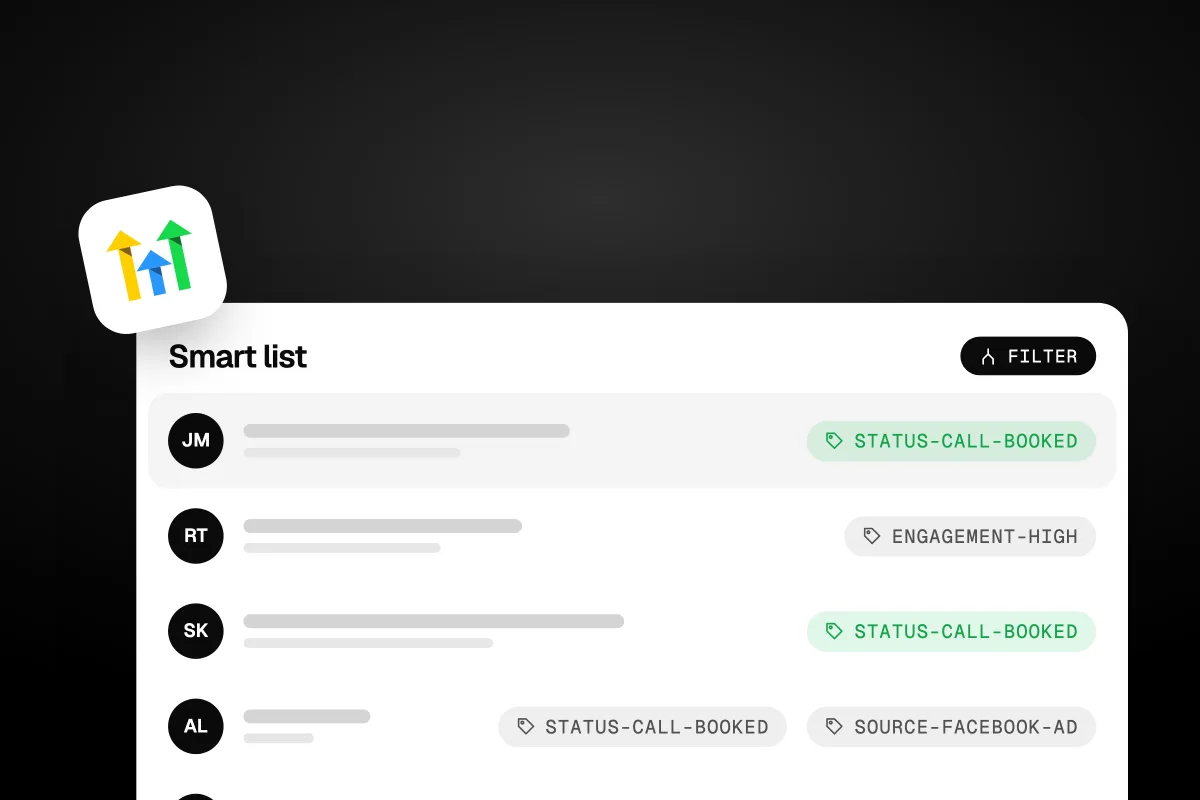
Sending the same email to every contact in your database is the fastest way to train people to ignore you. The coach who bought your $5,000 program does not need the same nurture sequence as someone who downloaded a free PDF two weeks ago. The prospect who booked a call but did not show up needs a completely different message than the one who attended and said "let me think about it." If you are treating all these people the same way, your marketing is working against you.
This is where smart lists and tags inside GoHighLevel (we may earn a commission from this link) change the game. They let you slice your audience into precise segments based on behavior, interests, status, and engagement, then communicate with each segment differently. The result: higher open rates, more replies, more bookings, more sales.
This guide covers everything you need to know about building a tagging system that actually works, creating smart lists that update themselves, and using both to run your coaching business with surgical precision.
What Are Tags in GoHighLevel?
Tags are labels you attach to contacts. They can describe anything: where the contact came from, what they are interested in, what stage they are at in your sales process, whether they bought from you, or what product they own.
Think of tags as sticky notes on each contact's profile. You can add as many as you want, and each one gives you a way to filter, sort, and target that person differently.
Examples of Useful Tags for Coaches
Source Tags (where they came from):
facebook-ad
instagram-organic
webinar-march-2026
referral
podcast-guest
Interest Tags (what they care about):
interested-1on1-coaching
interested-group-program
interested-course
downloaded-lead-magnet
Status Tags (where they are in your process):
call-booked
call-completed
no-show
proposal-sent
client-active
client-completed
Engagement Tags (how they behave):
opened-5-emails
clicked-sales-page
watched-webinar-replay
high-engagement
gone-cold
The power of tags comes from combining them. A contact tagged "facebook-ad" + "interested-1on1-coaching" + "clicked-sales-page" is a very different prospect than one tagged "podcast-guest" + "downloaded-lead-magnet" + "gone-cold." They deserve different messages, different offers, and different urgency levels.
“The power of tags comes from combining them. They let you see not just who someone is, but where they are in their journey.”
Building a Tagging System That Does Not Turn Into a Mess
Here is where most people go wrong: they start adding tags randomly, with no naming convention, no hierarchy, and no cleanup plan. Six months later, they have 247 tags, half of which overlap, and nobody knows what "hot-lead-2" means or how it differs from "qualified-lead."
Rule 1: Use a Consistent Naming Convention
Pick a format and stick to it. The most effective pattern for coaching businesses is category-descriptor:
source-facebook-ad
source-webinar
interest-1on1
interest-group
status-call-booked
status-client-active
engagement-high
engagement-cold
product-high-ticket
product-low-ticket
This grouping means all your source tags sort together, all your status tags sort together, and you can instantly see what category a tag belongs to just by reading it.
Rule 2: Document Your Tags
Create a simple reference document that lists every tag, what it means, and when it gets applied. This sounds tedious, but it saves hours of confusion later, especially if you have a team or VA managing your CRM.
| Tag | Meaning | Applied When |
|---|---|---|
| source-facebook-ad | Lead from Facebook ads | Workflow: form submitted from FB ad landing page |
| status-call-booked | Has an upcoming discovery call | Workflow: appointment booked |
| status-no-show | Missed their appointment | Workflow: appointment status = no show |
| engagement-high | Opened 5+ emails in last 30 days | Workflow: email opened trigger + count condition |
| product-high-ticket | Purchased high-ticket program | Workflow: payment received for high-ticket program |
Rule 3: Automate Tag Application
Never rely on manually tagging contacts. Set up workflows that add and remove tags based on actions:
When someone fills out your lead form:
Add tag: source-[traffic-source]
Add tag: interest-[offer-they-opted-into]
When someone books a call:
Add tag: status-call-booked
Remove tag: status-new-lead
When someone becomes a client:
Add tag: status-client-active
Add tag: product-[what-they-bought]
Remove tag: status-prospect
When someone goes 60 days without opening an email:
Add tag: engagement-cold
Remove tag: engagement-active
The remove step is just as important as the add step. If you only add tags and never remove outdated ones, your segments become inaccurate over time.
“Never rely on manually tagging contacts. Automate tag application, and just as importantly, automate tag removal.”
What Are Smart Lists?
Smart lists are dynamic, auto-updating views of your contacts based on filters you define. Unlike static lists where you manually add people, a smart list updates itself in real time as contact properties change.
Set the filter to "Tag = status-call-booked," and every contact who gets that tag automatically appears in the list. When the tag is removed (because they completed the call or became a client), they automatically disappear from the list.
Smart lists are your live dashboard for every segment of your business.
How to Create a Smart List
Go to Contacts in GoHighLevel
Click the filter icon
Set your filter conditions (tags, custom fields, dates, activity, etc.)
Once you have the view you want, click "Save as Smart List"
Name it clearly (e.g., "Hot Leads: Call Booked This Week")
That is it. The list is now live and will update automatically as contacts match or stop matching your criteria.
Filter Options for Smart Lists
GoHighLevel gives you a wide range of filters to build smart lists:
Tags (has tag, does not have tag)
Custom fields (any value, equals, contains)
Contact source
Date added (last 7 days, last 30 days, custom range)
Last activity (last contacted, last replied)
Appointment status (booked, completed, no show)
Pipeline stage
Email activity (opened, clicked, bounced)
Country, city, state
You can combine multiple filters with AND/OR logic to create highly specific segments.
10 Smart Lists Every Coaching Business Needs
Here are the smart lists that give you the most operational clarity and marketing power.
1. Hot Leads (Booked Call This Week)
Filters: Tag = status-call-booked AND Appointment Date = This Week
Why: This is your revenue forecast for the week. Open it every Monday to see exactly how many discovery calls are on the books and who they are with.
2. No-Shows (Last 30 Days)
Filters: Tag = status-no-show AND Date Added = Last 30 Days
Why: These are recovery opportunities. Run your no-show recovery workflow on this list, or use it for manual outreach on slow days.
3. Warm Prospects (Engaged but Not Booked)
Filters: Tag = engagement-high AND Does Not Have Tag = status-call-booked AND Does Not Have Tag = status-client-active
Why: These people are paying attention but have not taken the next step. They might need a different offer, a direct message, or a nudge.
4. Stale Leads (No Activity in 60 Days)
Filters: Last Activity = More Than 60 Days Ago AND Does Not Have Tag = status-client-active
Why: Your re-engagement campaign targets. Batch-tag these for your quarterly reactivation workflow.
5. Active Clients
Filters: Tag = status-client-active
Why: Your current client roster. Use this for check-in campaigns, upsell offers, and testimonial requests.
6. Completed Clients (No Testimonial)
Filters: Tag = status-client-completed AND Does Not Have Tag = testimonial-received
Why: These people finished your program but have not left a review. Target them with your testimonial request workflow.
7. High-Value Leads (Visited Sales Page + Opened Emails)
Filters: Tag = engagement-clicked-sales-page AND Email Opened = Last 7 Days AND Does Not Have Tag = status-client-active
Why: These are your hottest prospects. They are looking at your offer AND engaging with your content. Prioritize personal outreach to this list.
8. Leads by Source (Per Traffic Channel)
Filters: Tag = source-facebook-ad (create one per channel)
Why: Tells you how many leads each channel is producing. Compare the size and engagement of each source list to evaluate where your marketing budget should go.
“Smart lists are your live dashboard for every segment of your business. Set the filters once, and they update themselves forever.”
9. Unsubscribe Risk (Low Engagement)
Filters: Email Opened = 0 in Last 30 Days AND Emails Sent > 5
Why: People who receive your emails but never open them are about to unsubscribe or mark you as spam. Either re-engage them with a different approach or remove them to protect your sender reputation.
10. Upsell Candidates
Filters: Tag = product-[starter-product] AND Tag = engagement-high AND Does Not Have Tag = product-[premium-product]
Why: Clients who bought your entry offer and are highly engaged. These are the most likely buyers for your premium program.
Using Tags and Smart Lists Together for Segmented Campaigns
Here is where it all comes together. Tags create the segments. Smart lists surface them. Workflows act on them.
Example: Segmented Email Campaign
You are launching a new group coaching program. Instead of blasting your entire list, you create three versions of the announcement:
Version A (for warm prospects who have not bought):
Smart List: Tag = engagement-active AND Does Not Have Tag = status-client-active
Message: Focus on the problem your program solves, include social proof, strong CTA to book a call
Version B (for past clients):
Smart List: Tag = status-client-completed
Message: "You crushed it in [previous program]. Here is what is next." Focus on continuation and alumni pricing
Version C (for cold leads):
Smart List: Tag = engagement-cold AND Last Activity = More Than 90 Days Ago
Message: Re-introduction, what is new, low-friction CTA (free training or content, not a sales pitch)
Three versions. Three audiences. Three conversion rates that will be dramatically higher than one generic blast.
Example: Behavioral Trigger Sequences
Use tags to trigger different automation paths based on behavior:
When someone visits your sales page (tracked via GoHighLevel's link tracking):
Add tag: engagement-clicked-sales-page
Trigger workflow: Send case study email within 2 hours
If they visit the page 3+ times, add tag: engagement-hot and trigger a personal outreach notification to you
When someone watches 75% or more of your webinar replay:
Add tag: webinar-watched-75
Trigger workflow: Send "still have questions?" email with booking link
Move them to the "Warm" segment in your pipeline
This kind of behavioral segmentation is impossible with a basic email tool. It requires the CRM, automation, and tagging working together, which is exactly what GoHighLevel is built for.
“Three versions. Three audiences. Three conversion rates that will be dramatically higher than one generic blast.”
Advanced Tagging Strategies
Lead Scoring with Tags
Create a simple lead scoring system using tags:
Downloaded lead magnet: +5 points (tag: score-5)
Opened 3+ emails: +10 points (tag: score-10)
Clicked sales page: +15 points (tag: score-15)
Booked a call: +25 points (tag: score-25)
Attended webinar: +20 points (tag: score-20)
Use a workflow that checks tag combinations and applies a summary tag:
score-5 + score-10 = "lead-warm"
score-15 + score-25 = "lead-hot"
score-5 only after 30 days = "lead-cold"
This gives you a quick visual indicator of lead quality without needing a separate lead scoring tool.
Product Journey Tags
Track each client's journey through your product ladder:
product-lead-magnet (free download)
product-low-ticket (bought $47 product)
product-mid-ticket (bought $497 course)
product-high-ticket (bought $3,000+ program)
product-vip (bought premium/mastermind)
Now you always know where each contact sits on your value ladder and what the logical next offer is. A smart list filtered by "product-low-ticket" AND "engagement-high" AND NOT "product-mid-ticket" is your exact upsell audience.
If you are building a product ladder and would rather have the funnels for each tier built for you, Havstock Unlimited can build them.
Lifecycle Tags
Track where each contact is in their overall lifecycle:
lifecycle-subscriber (on your list, not a customer)
lifecycle-lead (engaged, showing buying intent)
lifecycle-customer (purchased at least once)
lifecycle-repeat-customer (purchased 2+ times)
lifecycle-advocate (left testimonial or referred someone)
lifecycle-churned (was a customer, did not renew)
These lifecycle tags help you calculate metrics like customer lifetime value, churn rate, and referral rate at a glance. Filter by lifecycle-churned to run winback campaigns. Filter by lifecycle-advocate to ask for referrals.
Common Tagging Mistakes to Avoid
Mistake 1: Too Many Tags, No System
If you have 300 tags with names like "hot," "warm2," "fb-lead-march," and "test123," your tagging system is broken. Audit your tags quarterly. Merge duplicates. Delete obsolete ones. Enforce your naming convention.
Mistake 2: Only Adding, Never Removing
Tags should reflect current status, not historical status. When someone moves from "prospect" to "client," remove the prospect tag. When someone re-engages after being cold, remove the cold tag. Stale tags create stale segments.
Mistake 3: Tagging Manually Instead of Automatically
If you are manually tagging contacts, you will eventually forget or fall behind. Every tag should be applied by a workflow trigger. Manual tagging is for exceptions, not the default.
Mistake 4: Not Using Tags in Your Workflows
Tags without workflows that act on them are just decoration. Every important tag should trigger or modify at least one workflow. If a tag does not change how you communicate with someone, question whether you need it.
Mistake 5: Ignoring Negative Segments
Knowing who to exclude is as powerful as knowing who to include. Tag people who asked not to be contacted. Tag people who complained. Tag competitors who signed up to spy. Then use "does not have tag" filters to exclude them from your campaigns.
“Knowing who to exclude is as powerful as knowing who to include.”
Setting Up Your Tagging System in 30 Minutes
Here is a quick-start plan:
Minutes 1-10: Define your core tags
Create tags for: 3-4 traffic sources, 3 interest categories, 5 status stages, 3 engagement levels, and your products.
Minutes 10-20: Build auto-tagging workflows
Create workflows that add the right tags when: a form is submitted, an appointment is booked, an appointment is completed, a payment is received, and a contact goes inactive.
Minutes 20-30: Create your first 5 smart lists
Build smart lists for: hot leads, no-shows, active clients, stale leads, and upsell candidates.
That gives you a fully functional segmentation system. Expand it over time as you learn which segments matter most for your business.
FAQ
What is the difference between tags and custom fields in GoHighLevel?
Tags are binary labels: a contact either has a tag or does not. Custom fields store specific values like a date, number, or text string. Use tags for categorization and filtering (e.g., "interested-in-coaching"). Use custom fields for data you need to reference (e.g., "Program Start Date: March 15" or "Coaching Niche: Business").
Can I import contacts with tags already applied?
Yes. When importing a CSV file into GoHighLevel, you can map a column to tags. Separate multiple tags with commas in the CSV field. This is useful when migrating from another CRM and you want to preserve your existing segmentation.
How many tags can I add to a single contact?
There is no practical limit. You can add as many tags as you need to a single contact. However, keeping it manageable (under 15 per contact) makes the system easier to maintain and troubleshoot.
Do smart lists count against any contact limits?
No. Smart lists are just saved filter views. They do not create duplicate contacts or count separately. You can create as many smart lists as you want without affecting your account limits.
Can I send an email campaign to a smart list?
Yes. When creating an email campaign or bulk action in GoHighLevel, you can select a smart list as your audience. The campaign will send to whatever contacts match the smart list filters at the time of sending.
How do I clean up old tags I no longer use?
Go to Settings > Tags in GoHighLevel. Review your tag list, sort by usage count, and delete tags that are applied to zero contacts or that you no longer need. Before deleting, check if any workflows reference that tag as a trigger or condition.
Can I use tags with GoHighLevel's AI features?
Yes. The Conversation AI and Workflow AI Builder can reference tags. For example, you can configure your AI chatbot to respond differently based on whether a contact has a "client-active" tag versus a "prospect" tag, personalizing the conversation based on their status.
What happens if I accidentally delete a tag that is used in a workflow?
The workflow will still exist, but the trigger or condition referencing that tag will no longer fire. GoHighLevel does not automatically warn you about dependencies. Always check your workflows before deleting tags.
Want your funnels, follow-up, and tagging set up right from day one? See how Havstock Unlimited works. One small team builds and runs your CRM, automations, and email campaigns for one flat monthly fee.