
Getting paid should not be the hardest part of running a coaching business. Yet most coaches spend hours sending manual invoices, chasing overdue payments, and juggling Stripe, PayPal, and bank transfers across three different tabs. The irony is brutal: you built a business to help people, and half your admin time goes to begging them to pay you for it.
GoHighLevel has a full payments and invoicing system built into the platform. Stripe integration, automated invoicing, recurring billing, payment links, order forms, and subscription management. All inside the same CRM where you manage your leads, funnels, and automations. No more bouncing between platforms or losing track of who paid what.
This guide covers everything: setting up your payment processor, creating invoices, building order forms, automating recurring billing, and using workflows to handle the follow-up when a payment fails or a client goes overdue.
Why Most Coaches Lose Money on Payments
The payment process is where small inefficiencies compound into real revenue loss. Here is what actually happens in most coaching businesses:
- Clients say yes on a discovery call, and then the coach sends a manual invoice 6 hours later. By then, the excitement has cooled. Conversion drops.
- Payment plans are managed in a spreadsheet. Missed payments go unnoticed for days.
- There is no automated receipt, no follow-up on failed charges, and no system to re-engage lapsed subscribers.
- The coach uses one tool for invoicing, another for subscriptions, and a third for tracking. Nothing talks to each other.
The fix is not working harder at collections. It is building a payment system that handles everything automatically the moment someone decides to buy.
“The fastest way to lose a sale is to make paying difficult. Every extra step between "yes" and "paid" costs you conversions.”
Setting Up Stripe Connect in GoHighLevel
Before you can collect a single dollar, you need to connect a payment processor. GoHighLevel uses Stripe as its primary payment integration.
Step-by-Step Setup
- Navigate to Payments in your GoHighLevel sub-account sidebar.
- Click on Integrations and select Stripe.
- Click Connect with Stripe. This opens a Stripe Connect onboarding flow.
- If you already have a Stripe account, log in. If not, create one during the flow.
- Complete the business verification steps (business type, address, bank account for payouts).
- Once connected, your Stripe account appears as active in GoHighLevel.
Important Details
- GoHighLevel uses Stripe Connect, which means payments process through your Stripe account directly. You get paid into your own bank account on Stripe's standard payout schedule.
- Transaction fees are Stripe's standard rates (typically 2.9% + 30 cents per transaction in the US). GoHighLevel does not add extra fees on top for payments on the $97/month and $297/month plans.
- You can also connect PayPal as a secondary processor for clients who prefer it.
- For international coaches, Stripe supports 135+ currencies and 46+ countries. Check Stripe's availability in your region.
Testing Your Connection
After connecting, create a test product and run a small transaction (you can refund it immediately). Verify that:
- The payment shows up in your GoHighLevel Payments dashboard
- The transaction appears in your Stripe dashboard
- The contact in GoHighLevel gets tagged or moved in the pipeline as expected
Do not skip this step. Finding out your payment integration is broken when a client tries to pay is not a good look.
Creating Invoices in GoHighLevel
Invoices are the bread and butter of service-based businesses. Whether you bill per session, per project, or per month, GoHighLevel's invoicing system handles it without needing a separate tool like QuickBooks or FreshBooks for basic billing.
How to Create an Invoice
- Go to Payments, then Invoices.
- Click Create Invoice.
- Fill in the client details (or select an existing contact from your CRM).
- Add line items: service name, description, quantity, rate.
- Set the due date and any payment terms.
- Choose whether to include a payment link (highly recommended so they can pay instantly online).
- Send the invoice via email directly from GoHighLevel.
Invoice Best Practices for Coaches
Send immediately after the sale. The moment someone says yes on a call, send the invoice or payment link while they are still on the phone with you. "I am sending over the invoice right now. You should see it in your inbox in the next 30 seconds." This closes the loop instantly.
Use clear, specific line items. Not "Coaching Package" but "12-Week Business Growth Accelerator (March-June 2026)." Specificity reduces confusion and disputes.
Include a payment link in every invoice. If the client has to log into a portal, find the invoice, and then figure out how to pay, you have already lost momentum. One click to pay. That is the standard.
Set up automatic reminders. GoHighLevel can send payment reminder emails before and after the due date. Configure reminders at 3 days before, on the due date, and 3 days after. This eliminates the awkward "just checking in on that invoice" conversation.
“Chasing invoices is not a revenue strategy. Automation is.”
Building Order Forms and Checkout Pages
Invoices work for existing client relationships. For new sales, you need order forms and checkout pages that let people pay instantly after seeing your offer.
Order Forms vs. Funnels
- Order forms are standalone payment pages. Great for direct links from emails, DMs, or social media.
- Funnel checkout pages are embedded in a full funnel flow. Better for structured sales processes where the prospect moves through an opt-in, sales page, and then checkout.
Both use the same GoHighLevel payment infrastructure. The difference is context and presentation.
Creating an Order Form
- Go to Payments, then Order Forms.
- Click Create Order Form.
- Add your product or service with pricing.
- Customize the form fields (name, email, phone, billing address).
- Set up one-time payment, payment plan, or subscription pricing.
- Customize the thank-you page or redirect URL.
- Copy the form link or embed it on your website.
Checkout Page in a Funnel
If you are using a GoHighLevel funnel for your sales process, add an Order Form element to your checkout page:
- In your funnel editor, add a new step or edit your checkout page.
- Drag the Order Form element onto the page.
- Select the product and pricing you configured.
- Style the checkout to match your funnel design.
- Set the post-purchase redirect (thank-you page, onboarding page, or membership access).
For coaches selling high-ticket programs, the funnel approach typically converts better because the prospect has already consumed your sales content before reaching the checkout.
The High Ticket OS includes a pre-built checkout flow designed specifically for high-ticket coaching offers, with order bump and upsell pages already configured.
Setting Up Recurring Billing and Subscriptions
Recurring revenue is what separates struggling coaches from stable ones. Monthly memberships, group coaching programs, retainers, and subscription-based access all require automated recurring billing.
Creating a Recurring Product
- Go to Payments, then Products.
- Click Create Product.
- Enter the product name and description.
- Under pricing, select Recurring.
- Set the billing interval (weekly, monthly, quarterly, annually).
- Set the price per period.
- Optionally add a setup fee for the first payment.
- Save the product.
Subscription Management
Once clients subscribe, GoHighLevel tracks everything automatically:
- Active subscriptions show in the Payments dashboard with status, next billing date, and payment history.
- Failed payments trigger automatic retry attempts (configurable in Stripe settings).
- Cancellations can be initiated by you or the client (if you enable client-side cancellation).
Payment Plans for High-Ticket Offers
Not everyone can pay $3,000 upfront for your coaching program. Payment plans make high-ticket offers accessible without destroying your cash flow.
In GoHighLevel, set up a payment plan by:
- Creating a product with Payment Plan pricing.
- Setting the total amount, number of installments, and interval.
- Optionally charging a higher total for payment plans (e.g., $3,497 over 6 months vs. $2,997 paid in full). This incentivizes full payment while making the program accessible.
“Payment plans do not mean you are discounting. They mean you are removing the biggest objection between your prospect and their transformation.”
Automating Access Based on Payment Status
This is where GoHighLevel's all-in-one advantage really kicks in. Because your CRM, payments, and automations are in the same platform, you can:
- Grant course or membership access automatically when a subscription starts
- Revoke access automatically when a subscription is canceled or a payment fails
- Move contacts through pipeline stages based on payment events
- Send targeted re-engagement emails to clients whose payments failed
Build a workflow triggered by "Payment received" to handle the positive path, and another triggered by "Subscription canceled" or "Payment failed" to handle the negative path.
Automating Payment Workflows
Manual payment follow-up is the biggest time drain coaches never talk about. Here are the workflows that eliminate it.
Workflow 1: Instant Payment Confirmation
Trigger: Payment received
Actions:
- Send a receipt email with payment details and next steps
- Add a tag: "Paid - [Program Name]"
- Move contact to "Active Client" pipeline stage
- Send an internal notification to you or your team
- If applicable, grant membership or course access
Workflow 2: Failed Payment Recovery
Trigger: Payment failed (or subscription past due)
Actions:
- Wait 1 hour (Stripe automatically retries, so give it a buffer)
- Send a friendly SMS: "Hey [first name], looks like there was an issue with your payment for [program]. Can you update your card info here? [payment link]"
- Wait 48 hours
- If still unpaid, send an email with the same update link and a note that access may be paused
- Wait 5 days
- If still unpaid, pause access and send a final notice
- Add tag "Payment Issue" for your team to review
Workflow 3: Subscription Renewal Reminder
Trigger: X days before subscription renewal (use a date-based trigger or custom field)
Actions:
- Send a value-recap email: "Your next billing date for [program] is [date]. Here is what you have accomplished this month: [summary or link to progress]."
- This reduces involuntary churn by reminding clients of the value they are getting before the charge hits.
“The difference between 90% and 95% payment collection is not luck. It is automation.”
Workflow 4: Overdue Invoice Escalation
Trigger: Invoice past due by 3 days
Actions:
- Send a reminder email: "Just a heads up, your invoice for [amount] is past due. Here is the payment link: [link]"
- Wait 4 days
- Send a second reminder with slightly more urgency
- Wait 7 days
- Send a final notice indicating the account will be paused
- Add internal task for manual follow-up if the amount is significant
Payment Links: The Fastest Way to Get Paid
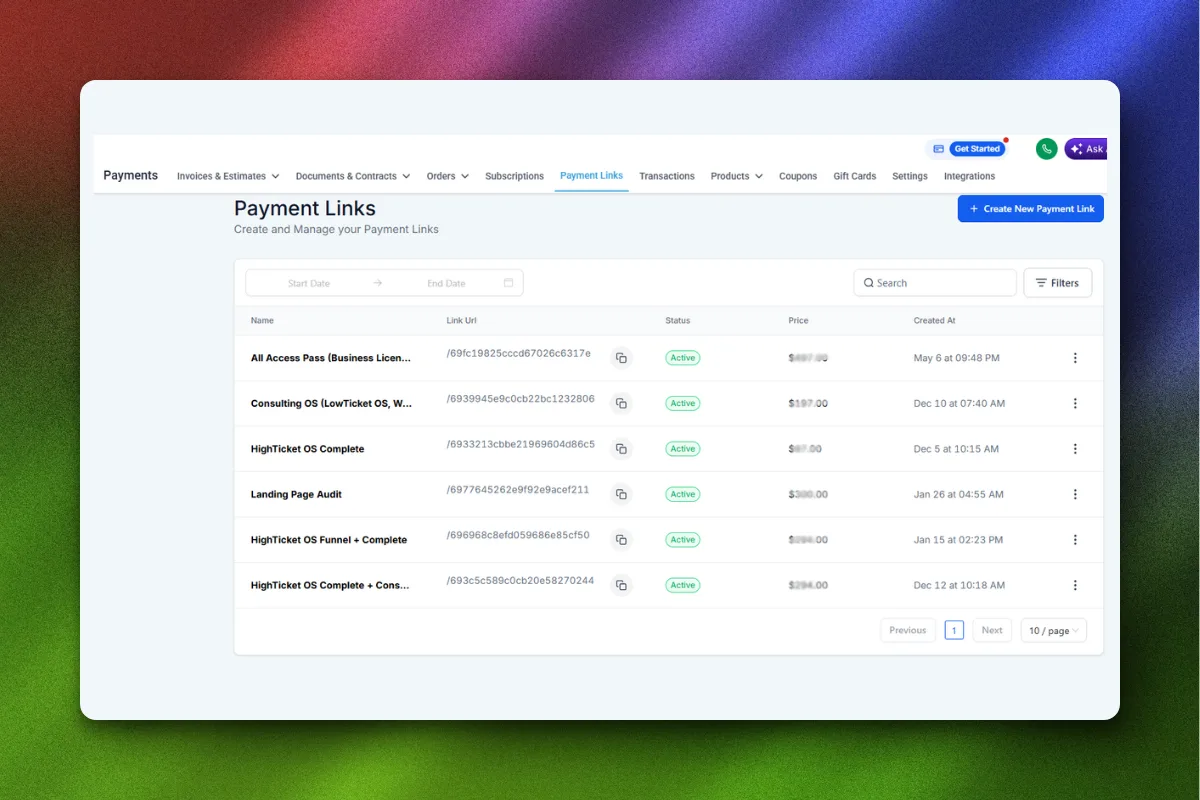
Payment links are underrated. They are direct URLs that take someone straight to a checkout page for a specific product or amount. No funnel needed. No invoice needed. Just a link.
When to Use Payment Links
- Closing a sale over DM or text: "Here is the link to get started: [payment link]"
- Upselling an existing client on an additional service
- Collecting deposits before a call or event
- Quick one-off charges that do not warrant a formal invoice
Creating a Payment Link
- Go to Payments, then Payment Links.
- Click Create Link.
- Select the product or enter a custom amount.
- Customize the success redirect.
- Copy the link and share it anywhere: email, SMS, social media, your website.
Payment links are particularly powerful when combined with GoHighLevel workflows. You can include them in automated SMS or email sequences, so when a lead reaches a specific pipeline stage, they automatically receive a payment link.
Reporting and Tracking Your Revenue
GoHighLevel's Payments dashboard gives you a real-time view of your financial health:
- Total revenue by period (daily, weekly, monthly)
- Subscription metrics: active subscribers, MRR (monthly recurring revenue), churn rate
- Invoice status: paid, pending, overdue
- Transaction history: every payment with amount, date, client, and status
Key Metrics for Coaches
Track these monthly:
- MRR (Monthly Recurring Revenue): Your predictable income from subscriptions and payment plans.
- Collection Rate: Percentage of invoiced amounts that are actually collected. Target: 95%+.
- Average Revenue Per Client: Total revenue divided by active clients. This tells you if you are undercharging.
- Churn Rate: Percentage of subscribers who cancel each month. Below 5% is healthy for coaching businesses.
- Time to Payment: Average days between invoice sent and payment received. Lower is better.
Using Revenue Data to Make Decisions
Your payment data tells a story. If your churn rate is climbing, your delivery needs attention. If your collection rate is dropping, your payment follow-up workflows need tuning. If your average revenue per client is flat, it is time to introduce upsells or raise prices.
Do not just collect the data. Act on it monthly.
Tax Considerations for Coaches
This is not tax advice (talk to your accountant), but here are the practical considerations when using GoHighLevel for payments:
- Stripe generates tax documents. Your 1099-K or equivalent is handled by Stripe, not GoHighLevel.
- Record keeping. GoHighLevel's payment history serves as a transaction log, but export your data regularly for your accountant.
- Sales tax. If you sell digital products or courses, sales tax rules vary by jurisdiction. Use Stripe Tax or a service like TaxJar to automate collection.
- International payments. If you serve clients globally, be aware of VAT/GST requirements. Stripe handles multi-currency, but tax compliance is on you.
“Set up your tax infrastructure before you scale, not after. Cleaning up a year of untracked payments is painful and expensive.”
Common Payment Mistakes Coaches Make
Waiting Too Long to Send the Invoice
Every hour between "yes" and "invoice sent" reduces conversion. Send immediately. Better yet, have them pay during the call using a payment link you share in the chat.
Not Offering Payment Plans
A $5,000 coaching program with no payment plan option excludes a huge segment of qualified prospects. Always offer a payment plan alongside the pay-in-full option.
Ignoring Failed Payments
A failed recurring payment is not the client's problem to solve. It is yours. Automated recovery workflows bring back 60 to 80 percent of failed payments without any manual intervention.
Using External Payment Tools
If you are already on GoHighLevel, routing payments through a separate tool like Dubsado or HoneyBook creates unnecessary complexity. Use the built-in system and keep everything in one place.
Not Tracking Metrics
If you do not know your MRR, churn rate, or collection percentage, you are guessing about your business health. Set up a monthly review of your payment metrics.
FAQ
Can I accept payments without Stripe in GoHighLevel?
GoHighLevel primarily integrates with Stripe for payment processing. You can also connect PayPal as an additional option. Some users connect Square via workarounds, but Stripe is the recommended and most fully supported processor.
Does GoHighLevel charge extra fees on payments?
GoHighLevel does not add transaction fees on top of Stripe's standard processing fees for the $97/month Freelancer and $297/month Agency Starter plans. The $497/month Agency Pro plan includes additional features. You pay Stripe's fees only.
Can I set up payment plans in GoHighLevel?
Yes. When creating a product, select "Payment Plan" pricing and configure the total amount, number of installments, and billing interval. GoHighLevel handles the recurring charges automatically through Stripe.
How do I handle refunds in GoHighLevel?
Refunds are processed through the Payments section. Select the transaction, click refund, and choose a full or partial refund. The refund processes through Stripe and typically takes 5 to 10 business days to appear on the client's statement.
Can clients update their own payment method?
Yes. GoHighLevel provides a customer portal where clients can update their card information. You can also send a direct link to the payment method update page. This is especially useful for recovering failed payments.
How do I send automated payment reminders?
Build a workflow triggered by invoice creation or a date-based condition. Add email or SMS actions with wait steps for your reminder schedule. Most coaches use reminders at 3 days before, day of, and 3 days after the due date.
Is GoHighLevel PCI compliant for handling payments?
GoHighLevel does not store credit card data directly. Card information is handled by Stripe, which is PCI Level 1 certified (the highest level). GoHighLevel's checkout forms use Stripe Elements, so sensitive data never touches GoHighLevel's servers.
Can I track which funnel or campaign generated a payment?
Yes. GoHighLevel attributes payments to the source funnel, form, or campaign. You can see which marketing efforts are driving revenue directly in your reporting dashboard, making it easy to calculate ROI on specific campaigns.
Stop Chasing Payments, Start Collecting Them
The difference between a coaching business that feels chaotic and one that feels professional often comes down to how payments are handled. Automated invoicing, instant checkout flows, recurring billing, and failed payment recovery turn a manual headache into a hands-off system.
If you want the complete system already built, the High Ticket OS includes pre-configured checkout flows, payment plan structures, and post-purchase automations designed for coaches selling programs on GoHighLevel.
Your clients want to pay you. Make it easy for them. Build the system, automate the follow-up, and spend your time coaching instead of invoicing.