If you are still manually sending follow-up emails, chasing leads through spreadsheets, or copy-pasting appointment reminders, you are bleeding time and money. GoHighLevel workflow automation eliminates all of that. Every repetitive task in your coaching or consulting business can run on autopilot, from the moment a lead fills out a form to the day they become a paying client.
This guide breaks down exactly how GoHighLevel workflows work, which automations matter most for service-based businesses, and how to set them up without hiring a developer or spending weeks figuring it out.
What Are GoHighLevel Workflows?
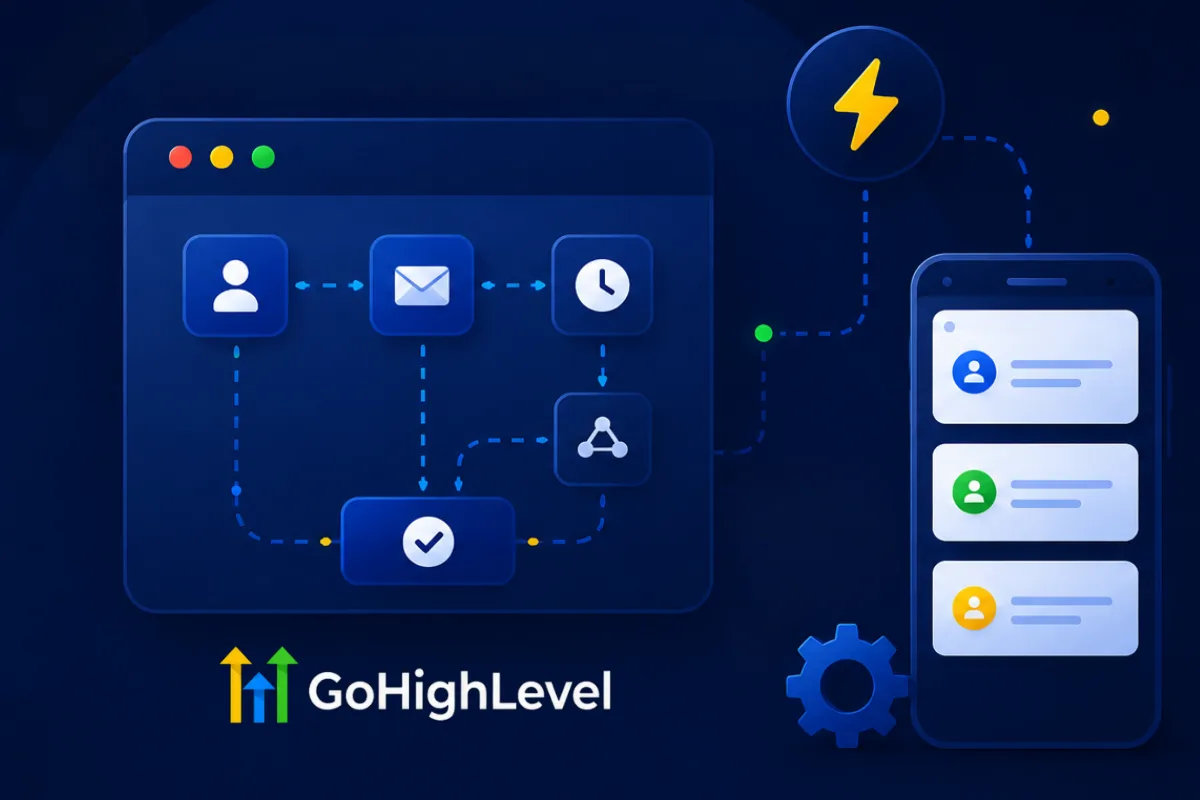
GoHighLevel workflows are visual automation builders that connect triggers (something that happens) to actions (something you want the system to do in response). Think of them as "if this, then that" chains on steroids.
A trigger fires when a specific event occurs: a lead submits a form, books an appointment, opens an email, clicks a link, or enters a pipeline stage. The system then executes a sequence of actions you have predefined: send an email, wait two days, send a text, add a tag, move them to a new pipeline stage, notify your team.
The workflow builder uses a drag-and-drop visual interface. You do not need to write code. You do not need to understand APIs. You connect blocks together and the system handles execution 24/7.
“Every repetitive task in your business can run on autopilot, from the moment a lead fills out a form to the day they become a paying client.”
Workflows vs. Legacy Campaigns
If you have been using GoHighLevel for a while, you might remember the old campaign builder. Workflows replaced campaigns entirely. The key differences:
- Visual builder: See the entire automation flow at a glance instead of navigating between tabs
- Conditional logic: Add if/else branches based on contact data, tags, or behavior
- Wait steps: Pause execution for a set time, until a condition is met, or until a specific day/time
- Multiple triggers: A single workflow can fire from multiple different events
- Go-to actions: Loop contacts back to earlier steps without duplicating nodes
Workflows are not just a cosmetic upgrade. They fundamentally change what you can automate and how complex your sequences can get.
The 7 Workflows Every Coach and Consultant Needs
Not every business needs 50 workflows running simultaneously. Most coaches and consultants need a core set of automations that handle the client journey from first touch to onboarded client. Here are the seven that move the needle.
1. New Lead Nurture Sequence
This workflow fires when someone opts in through your landing page, quiz, or lead magnet. The goal is to build trust and move them toward booking a call.
Trigger: Form submission or funnel step completion
Action sequence:
- Send immediate confirmation email with the lead magnet delivery
- Wait 10 minutes
- Send SMS introducing yourself and asking a qualifying question
- Wait 1 day
- Send email with a case study or testimonial
- Wait 2 days
- Send email with a direct call-to-action to book a discovery call
- Wait 3 days
- Send a "last chance" email with social proof
The timing matters. Too aggressive and you burn the lead. Too passive and they forget you exist. This sequence strikes a balance that works for high-ticket coaching offers.
“Too aggressive and you burn the lead. Too passive and they forget you exist.”
2. Appointment Booking Confirmation and Reminders
Show rates make or break your business. If 40% of your booked calls no-show, you need better pre-call nurturing, not more leads.
Trigger: Customer booked appointment
Action sequence:
- Send immediate confirmation email with call details and preparation instructions
- Send SMS confirmation
- Wait until 24 hours before appointment
- Send reminder email with what to expect on the call
- Wait until 1 hour before appointment
- Send SMS reminder with the meeting link
- Wait until 15 minutes before appointment
- Send final SMS: "Looking forward to speaking with you in 15 minutes"
This sequence alone can increase your show rate from 60% to 85%+. The key is the pre-call preparation email. When prospects feel prepared and know what to expect, they show up.
3. No-Show Follow-Up
Even with the best reminder sequence, some people will not show up. This workflow recovers those lost opportunities.
Trigger: Appointment status changed to "no-show"
Action sequence:
- Wait 30 minutes (give them a grace period)
- Send SMS: "Hey [name], looks like we missed each other. Want to reschedule?"
- Wait 4 hours
- Send email with a direct reschedule link
- Wait 2 days
- Send a value-add email (case study or tip) with a soft reschedule CTA
- Wait 5 days
- Send final attempt with urgency
Most businesses write off no-shows entirely. This workflow recovers 20-30% of them, which translates directly to revenue.
“Most businesses write off no-shows entirely. This workflow recovers 20-30% of them, which translates directly to revenue.”
4. Pipeline Stage Automation
GoHighLevel pipelines let you track where every lead sits in your sales process. Workflow automation makes pipeline management completely hands-off.
Trigger: Pipeline stage changed
Action sequence varies by stage:
- New Lead: Tag contact, assign to team member, send internal notification
- Contacted: Update contact record, schedule follow-up task
- Appointment Set: Trigger the booking confirmation workflow
- Proposal Sent: Send proposal follow-up sequence after 48 hours
- Closed Won: Trigger onboarding workflow, send welcome package
- Closed Lost: Add to re-engagement sequence for future nurturing
The power here is that moving a card in your pipeline triggers an entire chain of events. Your team does not need to remember what to send or when. The system handles it.
5. Post-Close Client Onboarding
The first 48 hours after someone pays you sets the tone for the entire relationship. A smooth onboarding experience reduces refund requests and increases client satisfaction.
Trigger: Payment received or pipeline stage changed to "Closed Won"
Action sequence:
- Send welcome email with onboarding instructions and links
- Send SMS welcoming them personally
- Wait 1 day
- Send email with first-week expectations and homework
- Create task for your team to schedule the kickoff call
- Wait 3 days
- Send check-in email asking if they need help getting started
- Add tag "Active Client" and remove from all sales sequences
This automation ensures no new client falls through the cracks, even if you close five clients in one week.
6. Review and Testimonial Request
Social proof drives your next sale. Automate the ask so you never forget.
Trigger: Custom date field (e.g., 30 days after program start) or manual trigger
Action sequence:
- Send email asking for a Google review with a direct link
- Wait 3 days
- If no review submitted, send SMS with a softer ask
- Wait 7 days
- Send email asking for a video testimonial with instructions
- Add tag "Review Requested"
Timing is everything. Ask too early and they have not seen results. Ask too late and the excitement has faded. The 30-day mark works well for most coaching programs.
“Social proof drives your next sale. Automate the ask so you never forget.”
7. Re-Engagement Campaign
Leads go cold. It happens. But cold does not mean dead. A re-engagement workflow warms them back up.
Trigger: Tag applied "Cold Lead" or no activity for 30+ days
Action sequence:
- Send email with a new piece of content (blog post, case study, free resource)
- Wait 4 days
- Send SMS with a personal question
- Wait 7 days
- Send email with a limited-time offer or new program announcement
- Wait 14 days
- If no engagement, remove from active sequences and add to monthly newsletter only
This workflow keeps your pipeline alive without you manually scrolling through old contacts wondering who to follow up with.
How to Build Your First Workflow: Step by Step
Let me walk you through setting up the New Lead Nurture Sequence from scratch. Once you understand the process, building the other six workflows follows the same pattern.
Step 1: Navigate to Workflows
Log into your GoHighLevel account. In the left sidebar, click "Automation" and then "Workflows." Click the blue "+ Create Workflow" button. You can start from scratch or use one of the pre-built recipe templates.
For this example, start from scratch so you understand every component.
Step 2: Add Your Trigger
Click "Add New Trigger." Select "Form Submitted" from the trigger list. In the filter options, select the specific form you want this workflow to fire on. If you want it to work for multiple forms, you can add multiple triggers to the same workflow.
Click "Save Trigger."
Step 3: Build Your Action Sequence
Click the "+" button below your trigger to add the first action.
First action: Send Email
- Select "Send Email" from the action list
- Choose your email template or write a new one
- Set the subject line and body content
- Include the lead magnet delivery link
Second action: Wait
- Add a "Wait" action
- Set it to 10 minutes
- This gives them time to check their email before you text
Third action: Send SMS
- Select "Send SMS"
- Write a personal, conversational message
- Include a qualifying question to get them replying
Continue adding wait steps and messages following the sequence outlined above.
Step 4: Add Conditional Logic (Optional)
Click the "+" and select "If/Else" to add branching logic. For example:
- If contact has tag "Booked Call" → End workflow (they already converted)
- Else → Continue the nurture sequence
This prevents you from sending nurture emails to someone who already booked a call two days ago.
Step 5: Test and Publish
Before publishing, use the "Test Workflow" feature. Add yourself as a test contact and verify that each step fires correctly, emails render properly, and SMS messages send.
Once confirmed, click "Publish" in the top right corner. The workflow is now live.
“Once you understand the process, building the other six workflows follows the same pattern.”
Advanced Workflow Techniques
Once you have the basics down, these techniques take your automations to the next level.
If/Else Branching Based on Contact Data
You can branch your workflows based on any contact field. Examples:
- If the contact's industry is "fitness coaching," send them fitness-specific case studies
- If the contact is in a specific timezone, adjust send times accordingly
- If the contact's lead source is "Facebook," use different messaging than "Google"
This turns generic follow-up sequences into personalized experiences that convert better.
Go-To Actions for Loops
The "Go To" action sends a contact back to an earlier step in the workflow. This is useful for:
- Retrying a failed delivery after a wait period
- Looping through a series of touchpoints until a condition is met
- Creating evergreen sequences that cycle through content
Math and Custom Value Operations
GoHighLevel workflows support math operations on custom fields. You can:
- Increment a "touchpoint count" field each time a message sends
- Calculate days since last interaction
- Score leads based on behavior (opened email = +5, clicked link = +10, booked call = +50)
Lead scoring through workflows gives you a clear picture of who is hot and who needs more nurturing.
Webhook Integration
Workflows can send data to external systems via webhooks. Use cases include:
- Sending new client data to your project management tool
- Triggering a Slack notification when a high-value lead enters your pipeline
- Syncing data with your accounting software when a payment is received
Time-Based Triggers
GoHighLevel supports time-based triggers that fire on specific dates or recurring schedules:
- Date field trigger: Fire a workflow on a contact's birthday, renewal date, or program end date
- Recurring schedule: Run a workflow every Monday to send weekly check-in messages to active clients
Common Workflow Mistakes to Avoid
Sending Too Many Messages Too Fast
Spreading messages out over days and weeks performs better than blasting five emails in 24 hours. Respect your prospects' inbox. A good rule: no more than one email and one SMS per day during active sequences.
Not Using Exit Conditions
Every workflow should have a way for contacts to exit early. If someone books a call after your second email, they should not receive emails 3, 4, and 5 pushing them to book a call. Use tags or pipeline stages to stop irrelevant messaging.
Forgetting to Test
Always test with a real contact (yourself) before publishing. Check that emails render on mobile, SMS messages stay under the character limit, and wait steps fire at the right times.
Making Workflows Too Complex
Start simple. A five-step workflow that runs reliably beats a 30-step monster that breaks. You can always add complexity later.
“A five-step workflow that runs reliably beats a 30-step monster that breaks.”
Not Segmenting Your Audience
One generic nurture sequence for everyone is a missed opportunity. Segment by lead source, service interest, or qualification level. Even two or three variations dramatically improve conversion rates.
Workflow Templates and Snapshots
Building all seven workflows from scratch takes time. If you want to skip the setup and get a pre-built system that is already configured with proven sequences, triggers, and messaging, the High Ticket OS includes ready-to-use workflow automations designed specifically for coaches and consultants selling high-ticket offers.
You import the snapshot into your GoHighLevel account, customize the messaging to match your voice, and the entire system is live in under an hour. No dragging and dropping for days. No wondering if you set the trigger correctly.
For lead generation specifically, the Lead Magnet OS includes a complete lead capture and nurture workflow that handles everything from opt-in to booked call.
Measuring Workflow Performance
Building workflows is only half the job. You need to track performance and optimize.
Key Metrics to Monitor
- Email open rate: Target 30%+ for nurture sequences
- SMS response rate: Target 10%+ for conversational messages
- Show rate: Target 80%+ for booked appointments
- Pipeline velocity: How fast contacts move from "New Lead" to "Closed Won"
- Conversion rate by stage: Where are contacts dropping off?
How to Optimize
Review your workflow performance monthly. Look for:
- Steps where contacts are getting stuck or dropping off
- Messages with low open or click rates (rewrite the subject line or CTA)
- Wait steps that might be too long or too short
- Branches that are underperforming compared to others
Small adjustments compound over time. A 5% improvement in show rate plus a 5% improvement in close rate plus a 5% improvement in lead nurture conversion adds up to significantly more revenue.
FAQ
What is a GoHighLevel workflow?
A GoHighLevel workflow is a visual automation builder that connects triggers (events like form submissions or appointment bookings) to actions (like sending emails, SMS messages, or updating contact records). It automates repetitive tasks in your business without requiring any coding.
How many workflows can I create in GoHighLevel?
There is no hard limit on the number of workflows you can create in GoHighLevel. You can build as many as your business needs. That said, most coaches and consultants need between 5 and 10 core workflows to cover their entire client journey.
Can I use workflows with the GoHighLevel mobile app?
Yes. Workflows run in the background on GoHighLevel's servers, so they execute regardless of whether you are logged in on desktop or mobile. You can monitor workflow activity and make edits from the mobile app, though the desktop interface is easier for building complex workflows.
What is the difference between workflows and campaigns in GoHighLevel?
Campaigns were the old automation system in GoHighLevel. Workflows replaced them with a more powerful visual builder that supports conditional logic, multiple triggers, go-to actions, and more. If you are still using campaigns, it is time to migrate to workflows.
How do I stop a workflow from sending messages to contacts who already converted?
Use exit conditions. Add an "If/Else" branch at key points in your workflow that checks for tags like "Booked Call" or "Paid Client." If the condition is true, route the contact to a "Stop" or "End" action. You can also use the "Remove Contact from Workflow" action triggered by a separate workflow.
Can workflows send messages at specific times of day?
Yes. You can configure wait steps to pause until a specific time of day or day of the week. For example, you can set a message to send only during business hours (9 AM to 5 PM) in the contact's timezone. This prevents texts from going out at midnight.
Do GoHighLevel workflows work with third-party tools?
Yes. GoHighLevel workflows support webhook actions that can send data to any external system with an API. Common integrations include Slack, Zapier, Google Sheets, Stripe, and project management tools. You can also receive data from external systems via inbound webhooks that trigger workflows.
What happens if a workflow fails or an action does not execute?
GoHighLevel logs workflow execution history for each contact. If an action fails (for example, an email bounces or an SMS fails), you can see the error in the contact's activity log. The workflow continues to the next step unless you have built in error handling logic.
Ready to stop building workflows from scratch and start with a proven system that is already configured for high-ticket coaching and consulting businesses? Grab the High Ticket OS and have your entire automation stack live today.